Inspection
The purpose of this SOP is to ensure employees can pick up this device and carry out environmental data collection/water metering.
Procedure
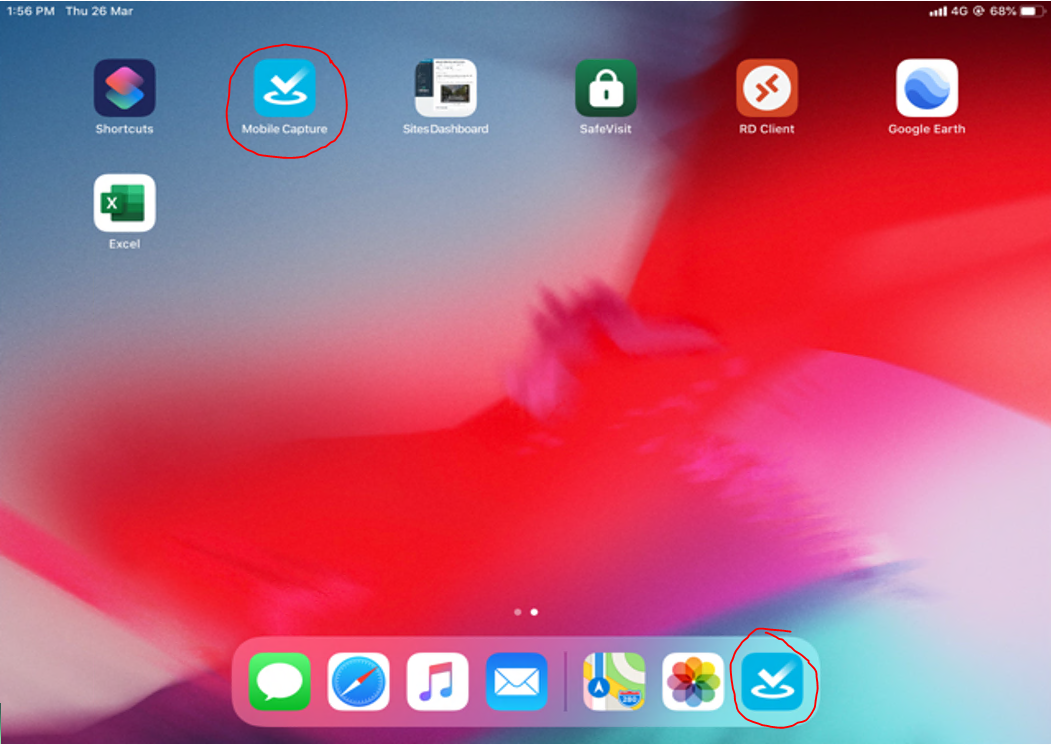
On the iPad, open the Mobile Capture app
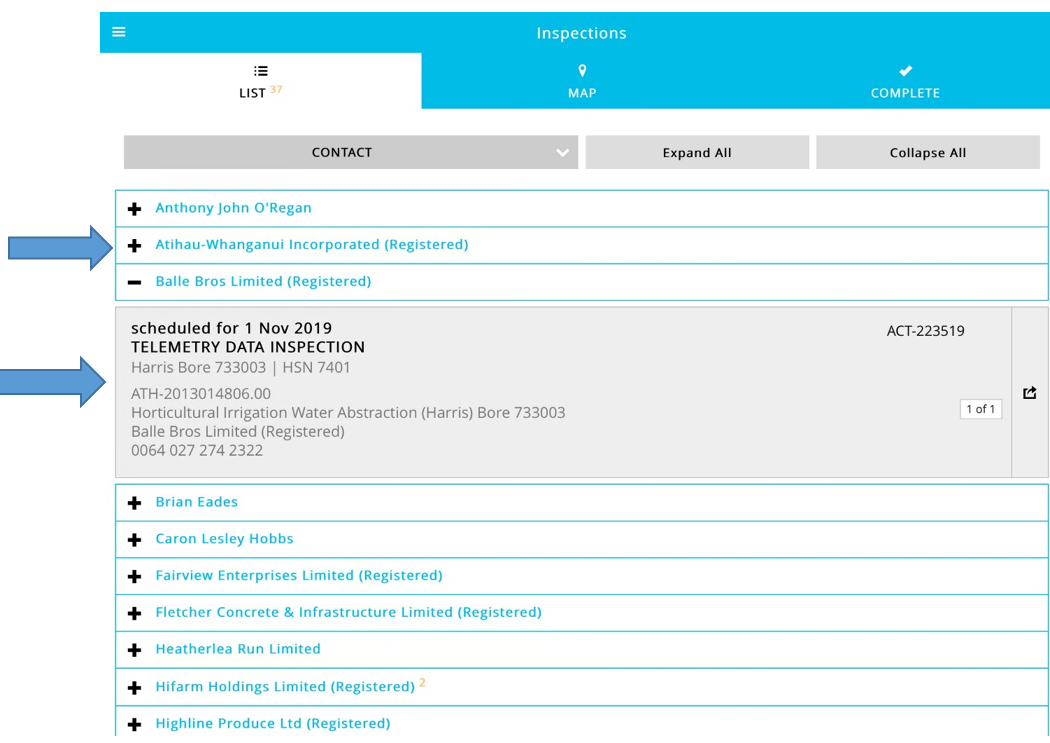
The initial screen displays a list of inspections that have been loaded to the device. The + will give you more details about the inspection such as:
When the inspection is scheduled
Type of inspection
Bore number and name of the consent
HSN (logger ID) number
ATH number
Purpose of the water abstraction
Company name
Contact number
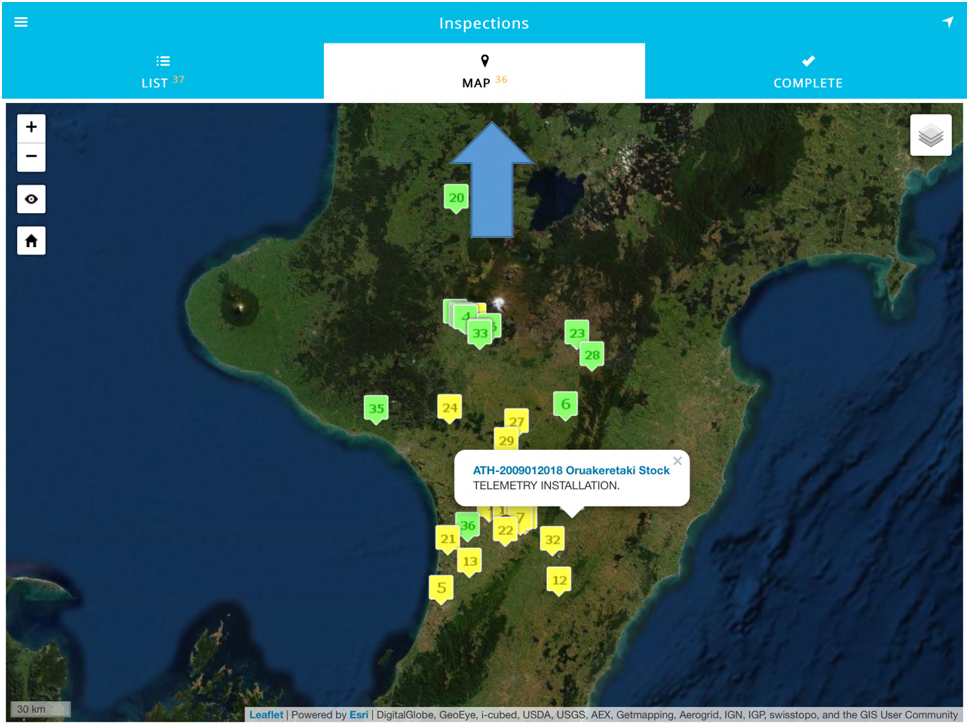
Another option of finding inspections is the map tab. The colours and numbers on the inspections make no sense and tend to change. To open the inspection, select the window that appears when an icon is pressed
Site Protocols
Some examples of site specific instructions:
Farmer wants you to ring him before entering
Specific paths to follow
The second box contains confidential information such as:
Passcodes or locations of keys

Inspection Details
Ensure the current date/time is selected NZST. Overwrite any old date with the current date/time
Write descriptive succinct comments. Some examples:
Site working good
Point orange installed, needs another inspection
Meter has pumped but logger hasn’t received any pulses. Simulated 4 pulses on Harvest, passed. Tested read switch and confirmed it’s faulty. Farmer to get new meter installed

Meter Details
Check the meter details with the meter
Ensure the serial number is that of the flowmeter not the display unit
If missing/incorrect details, update and select YES
Else, select NO

Taking a Meter Reading
Check the pump is running and note in the inspection. There is usually an indicator on the meter. Else, pump is making noise or pipe is cold/moist
Always enter the meter reading in the METER READING box

Below are examples of the meters you will encounter in the field
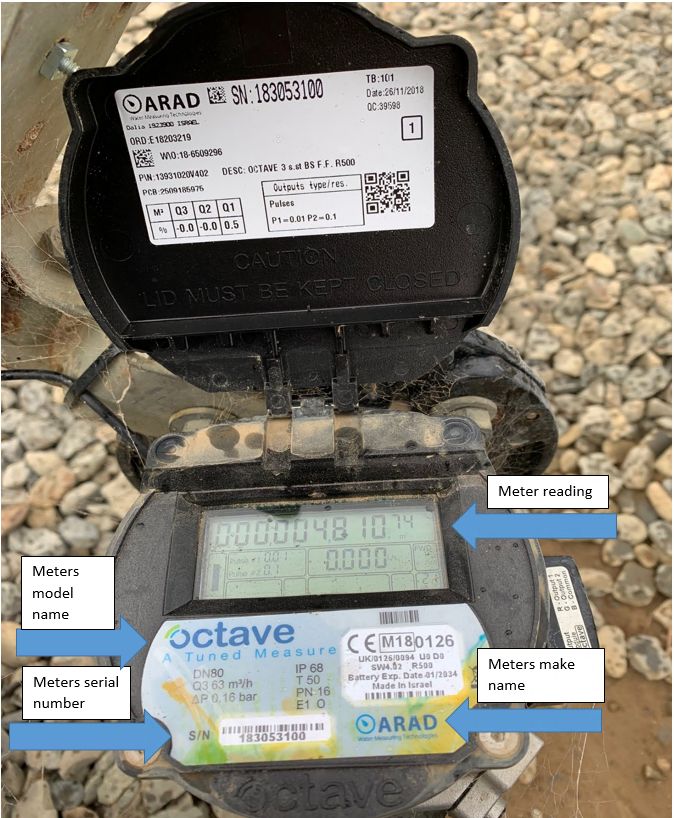
Octave
This meters display reads 4810.74 m3.
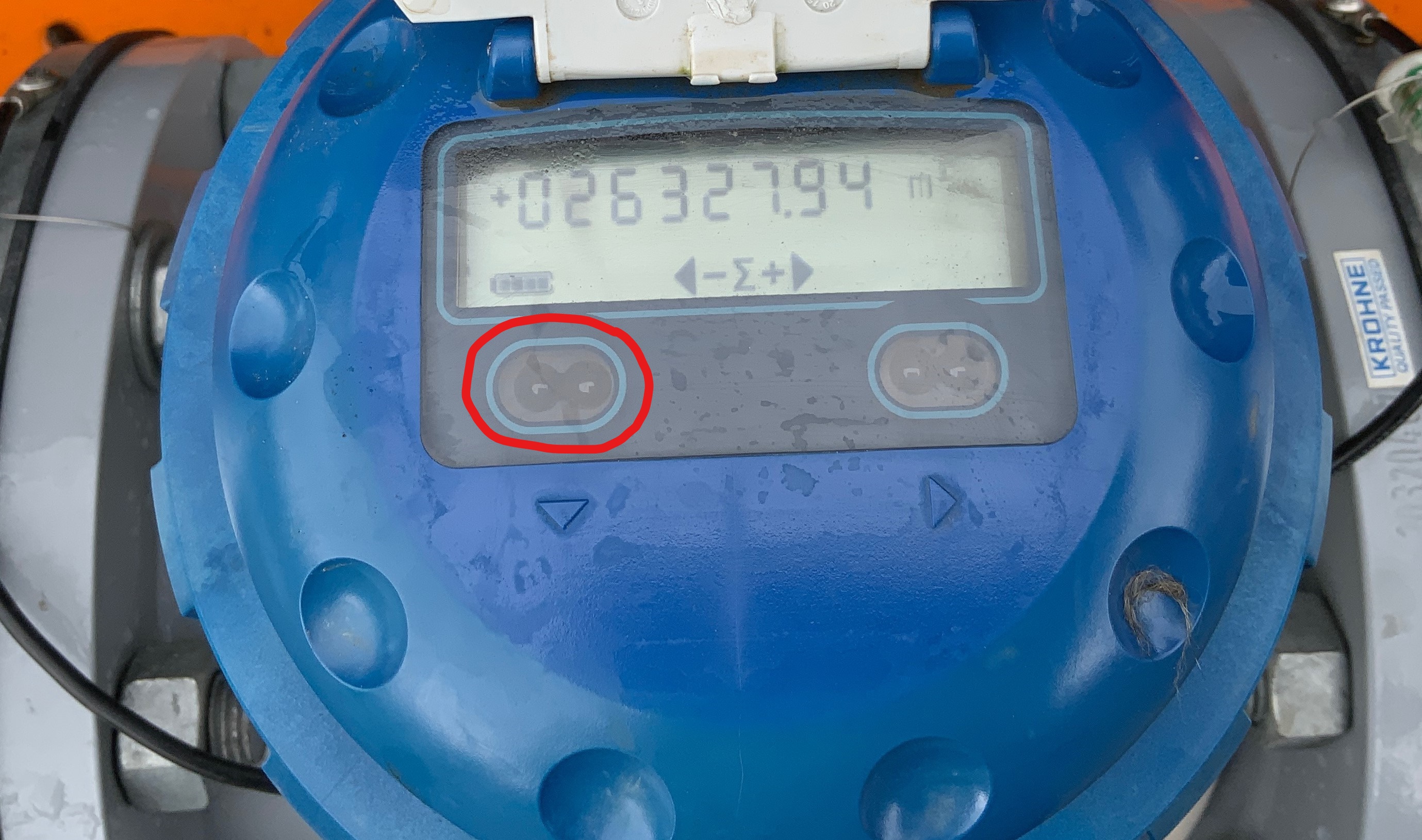
Krohne
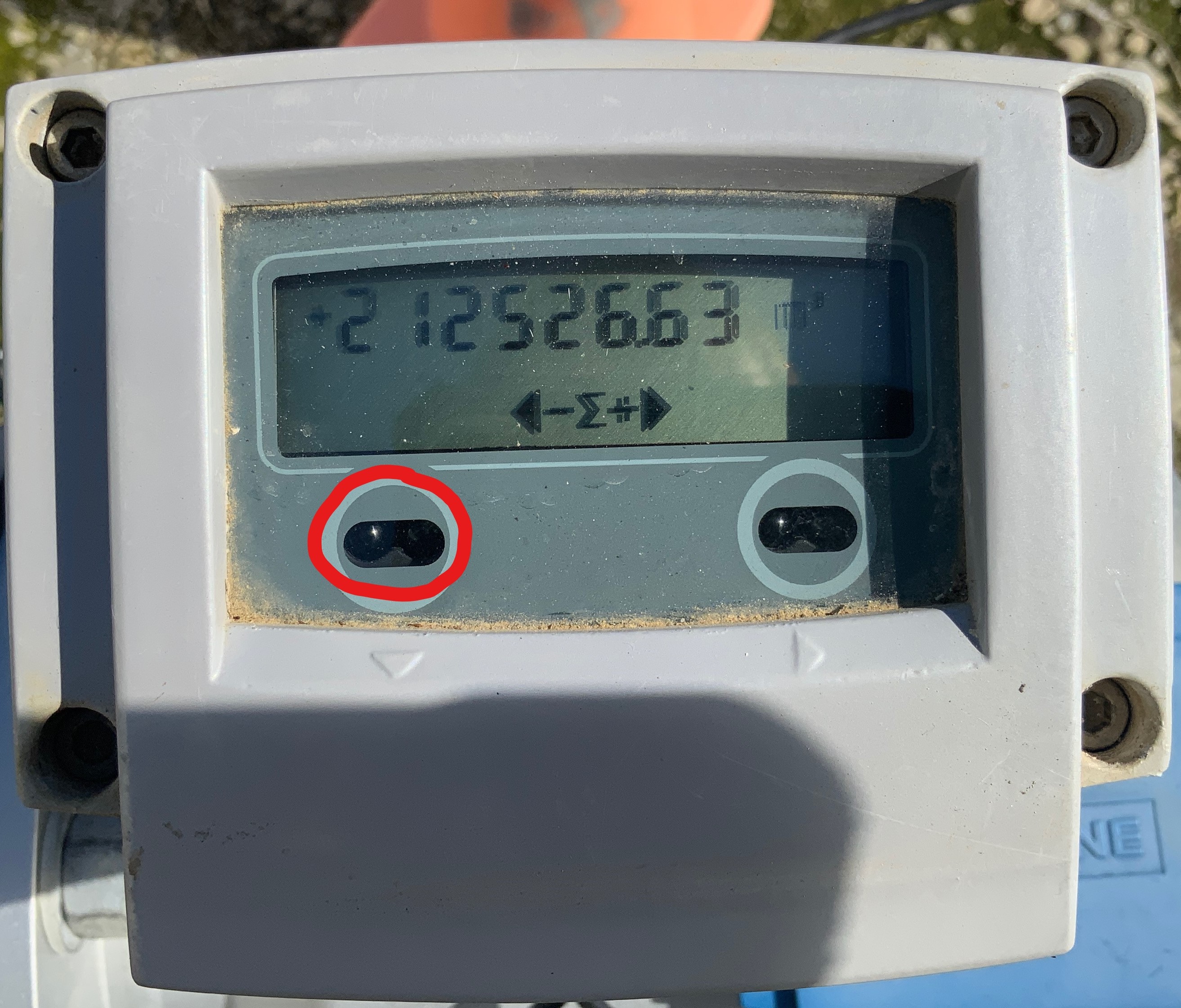
The navigation controls are based on light. Cover the down arrow once to get to the -Σ+ menu.
|
|
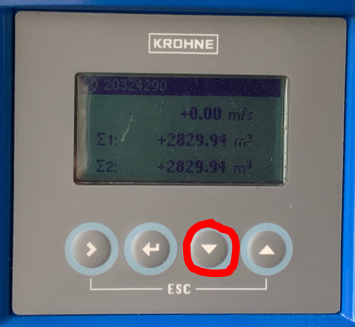
Krohne Display
Press down arrow once, should get to total flow. Reading is Σ1
Dial Meter
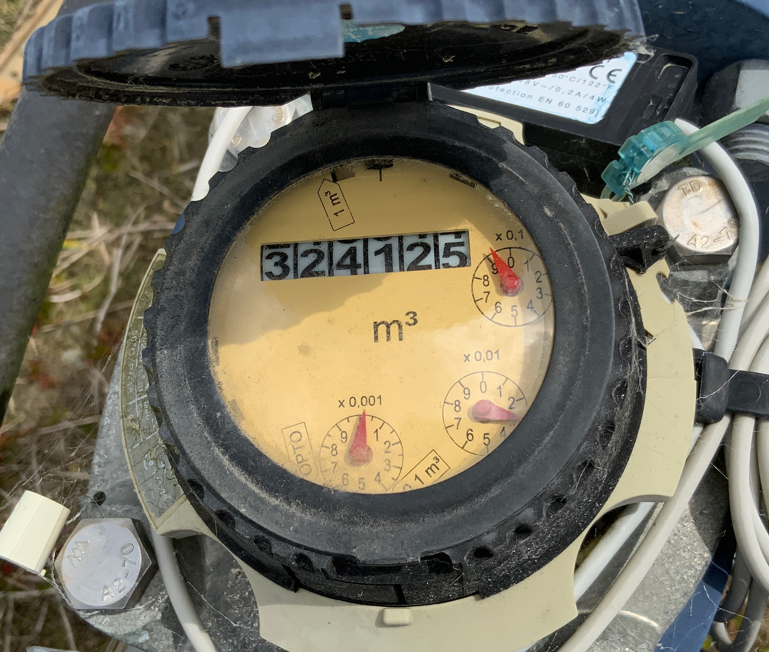
These are old piles. Take the reading from the number the point has just PASSED. Note the order of the decimal places. This meter reads 324125.930 m3
Logger Details
If installing a new meter, select YES for new datalogger. If you are able, enter the closing reading for the previous meter
Else, correct any mistakes for the logger model and make and ensure NOT APPLICABLE is selected.
Below are the meters you will encounter in the field
Point Orange
placeholder
Harvest Screen
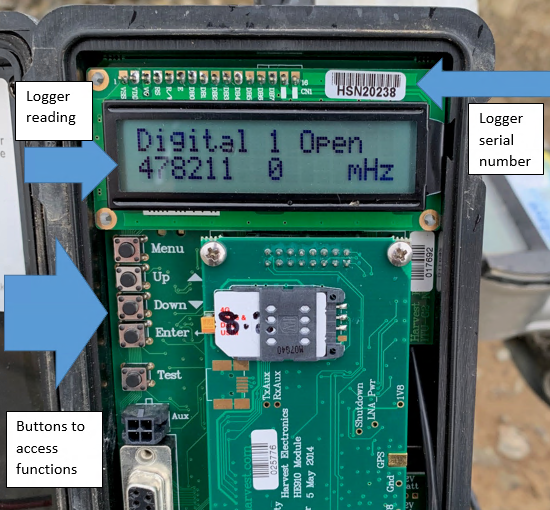
Select Menu > Input > Digital Input > Digital input 1. This number is the logger reading
Harvest Serial
placeholder
Campbell
placeholder
Taking a Logger Reading
Enter the logger reading in the corrosponding field.
The multiplier is the amount of water that flows per pulse. This is usually on the meter (see :Octave:)
The last field contains the ratio. Below is a table explaining the different ratios
Ratio |
Meaning |
Causes |
100 |
Logged readings = Meter readings |
Working site |
1000,10,.1,.001 |
Ratio is likely wrong |
Change the multiplier, re-evaluate ratio |
0 or close |
Likely hasn’t pumped |
Wait till pumped, meter not reading flow |
Less than 100 |
Logged readings > Meter readings |
Meter pulsing on reverse flow, external noise, faulty meter |
More than 100 |
Meter reading > Logged readings |
Faulty logger, broken connection, meter not sending pulses |
Compliance
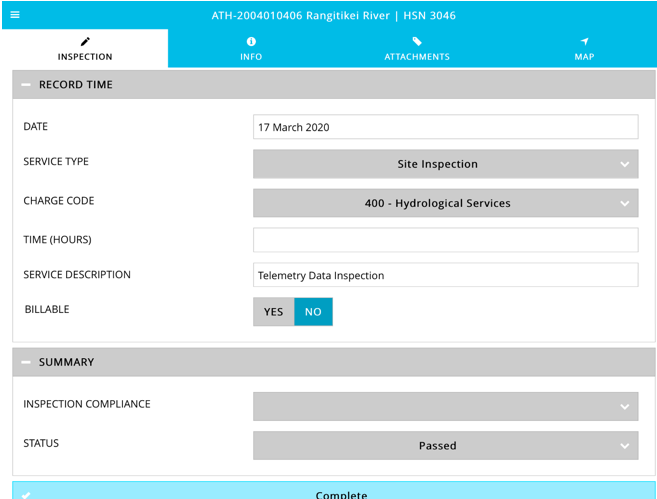
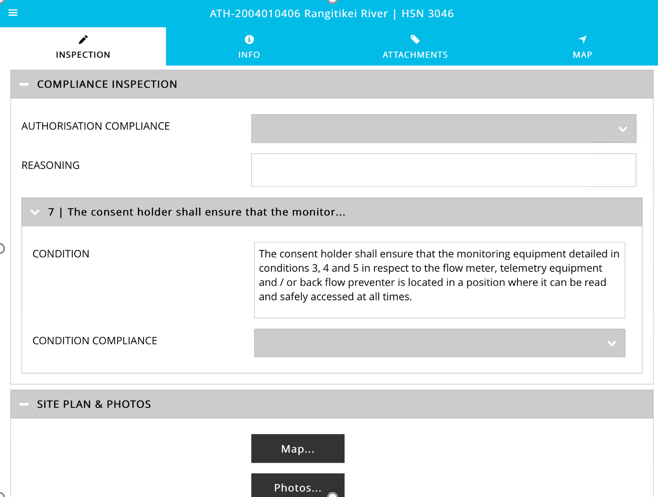
This is the compliance part of the inspection were you either pass or fail the inspection/conditions. You add the photos here, there is also a map function were you can draw a route to the site location if need be.
Time Taken
The last part of filling out the inspection is recording your time then a summary of the inspection compliance and inspection status.