Install
Things you’ll need
Your laptop
Poco Program
Clearscada program
Point orange unit, pulse cable, aerial, programing cable, mount, wire joiners
https://gis.geek.nz/map/celltowers https://www.vodafone.co.nz/network/coverage/ https://www.spark.co.nz/shop/mobile/network/ https://link.ui.com/#
Point Orange Setup
Check cell reception and install sim card with best reception (note IP address)
Configure point orange in Poco
Upload a template that suits application (e.g. Spark,Vodafone,double meter)
Assign point orange an outstation from (coms reporter) excel spreadsheet
Upgrade firmware in the device tab and choose latest file
Add device ID (ATH) and device location (site name e.g. smith dairy farm)
Download configuration to point orange and wait for it to call in using the call progress tab (wifi logo)
Once its called in to the cloud logo go to file and save as the device ID and device location into the metasphere folder
Install point orange to flow meter and take photos (meter serial number, point orange serial number)
Go to monitor points tab (chart logo) and scroll down to CIO, if water is pumping you should see some pluses coming through if not pumping put meter into simulation mode and test the pulse output, some meters won’t have a simulation mode, in this case you will have to monitor from clearscada at a later stage and see if its received a pulse.
Point orange is all setup and should be good to go.
CLEARSCADA
We need to set up a site in ClearSCADA for the point orange to put all its data.
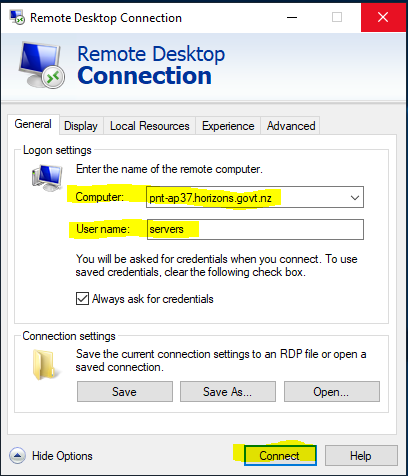
Remote into ClearSCADA server. Logon with your standard logon. Open ViewX
Download the
ClearSCADA.rdp.Computer:
pnt-ap37.horizons.govt.nzUsername:servers
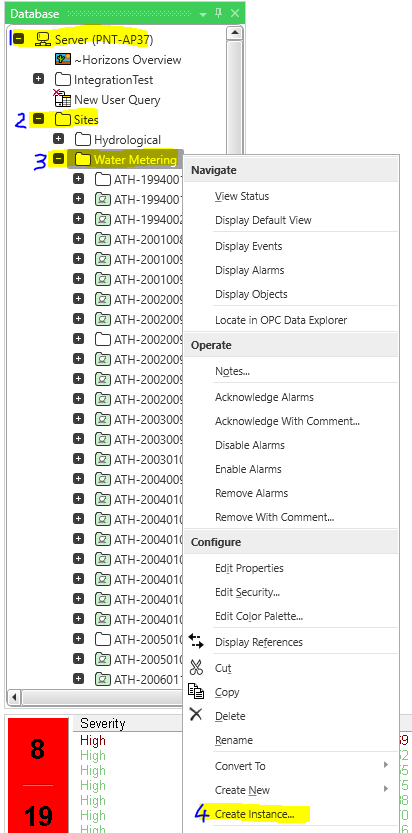
Select Server (PNT-AP37) > Sites > Water Metering
Right click on Water Metering and select Create Instance
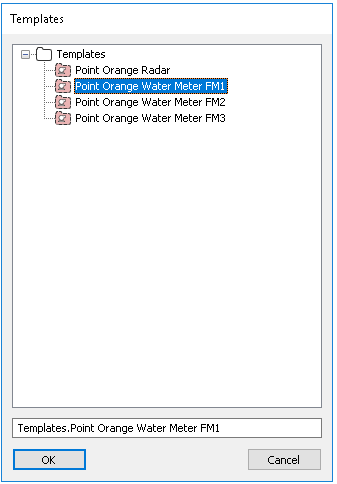
Select Point Orange Water Meter FM1. If you have more than one flow meter connected to the point orange select FM2 or FM3
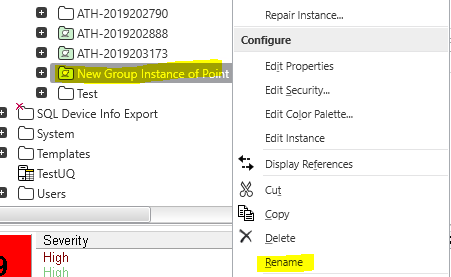
Right click New Group Instance and rename to the site with ATH number
Select + and double click Outstation
In the address box in the DNP3 tab, write the Device ID
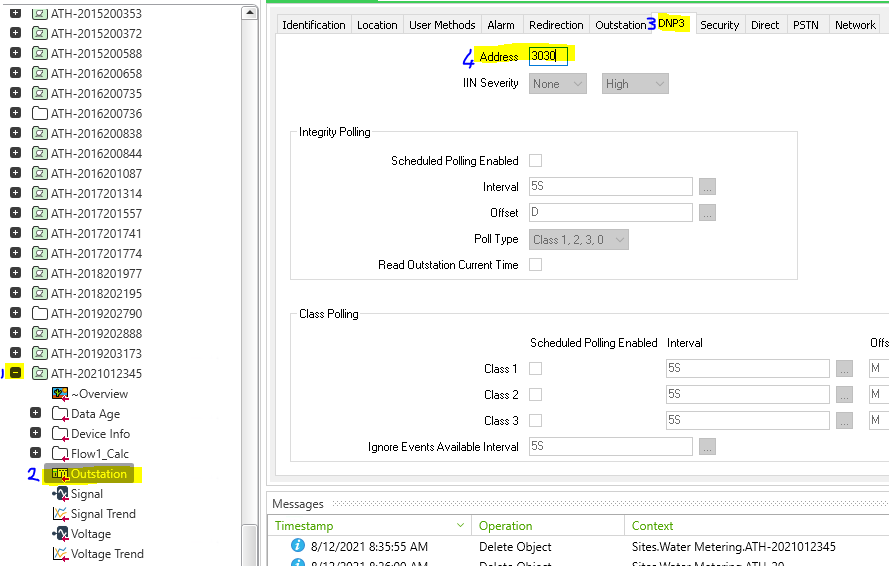
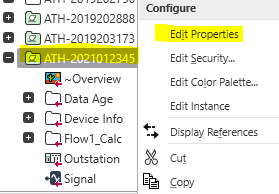
Right click your site and select Edit properties
Select Location tab. Select the … and enter the Lat and Long. This can be gotten from BaseMaps or IRIS
|
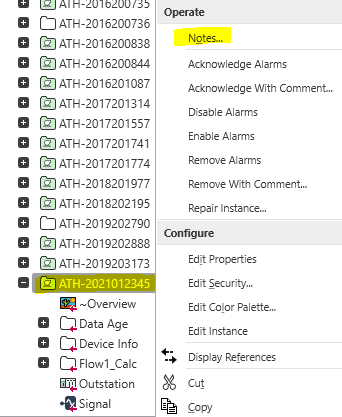
Right click your site and select Notes
Write down the IP address of the SIM card installed in the point orange
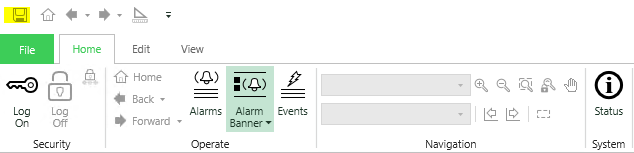
Go to the top left and click save (above the file tab)
HAZZAH you have setup ClearSCADA, have a free 10 points
OTHER THINGS TO DO
Update outstation spread sheet with site details and IP address
Move point orange in assets to the site (if you’ve replaced an old logger write it off)